HOME / DOCS / GETTING STARTED
Getting started
From download to a verified build in six steps.
Install
Download the DMG and drag Optivia into Applications. The preview build isn’t notarized with Apple yet, so on first launch right-click the app and choose Open, and macOS will remember your choice.
Add your API key
Optivia routes tasks to Claude models through your own Anthropic API key. Create one in the Anthropic console in about a minute. Paste it in when the app asks; it’s stored locally on your Mac and never leaves except to call the API.
Describe a build
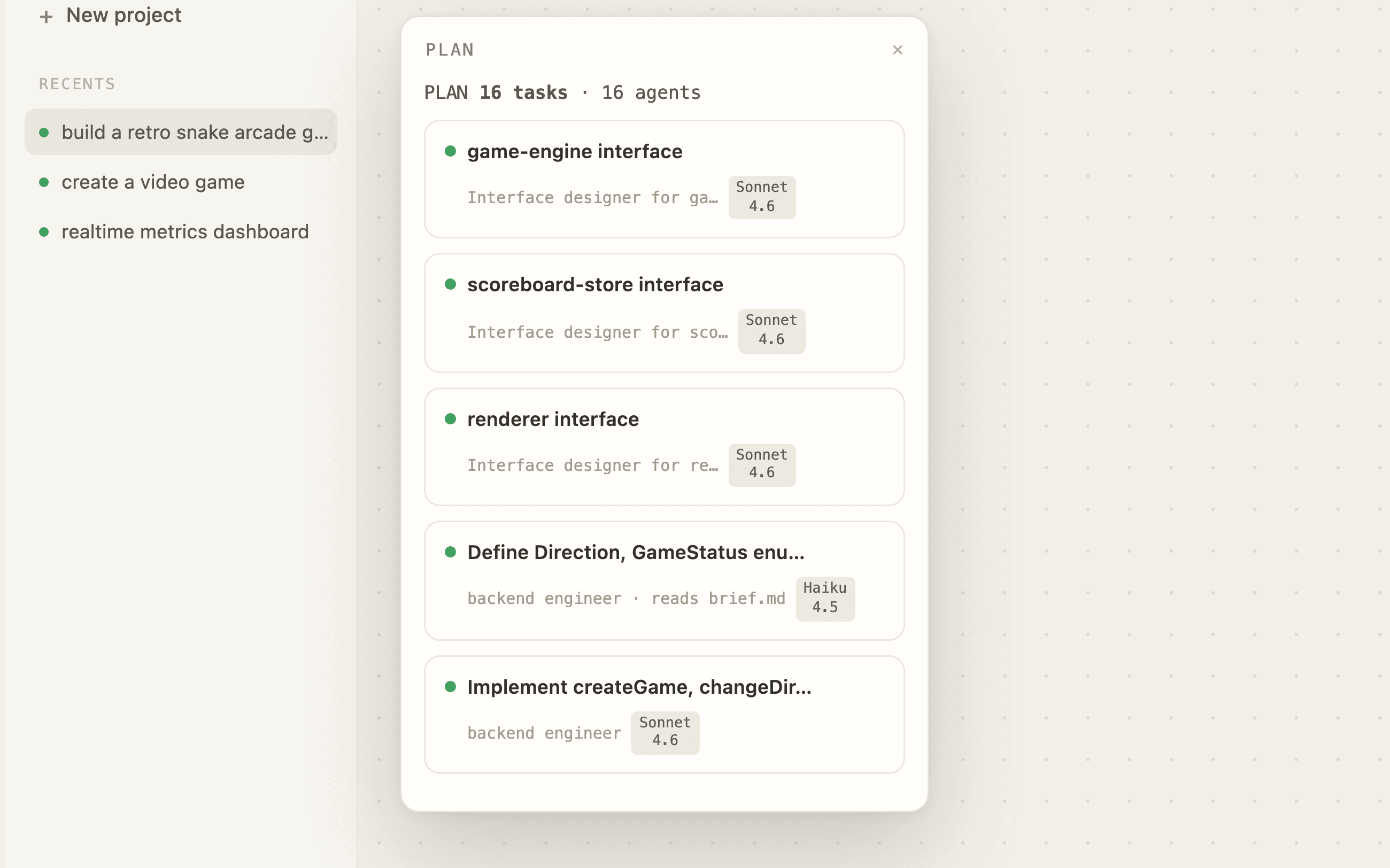
Type what you want to build. A sentence is enough. Optivia decomposes the brief into a dependency graph of typed tasks, interfaces first, ordered by what blocks what.
Approve the plan
Review the plan: every task shows its fleet, model, and inputs. Edit or regenerate anything, then approve. Nothing runs until you say so.
Watch the run
Fleets build in parallel under a concurrency cap. Follow the Run panel’s live counters, the graph’s check-offs, or the timestamped log stream. Every task must pass verification before it counts.
Ship the result
When the run reads verified, save the files straight to disk or copy a prompt-pack of the whole build to carry into any other tool.
If something snags
macOS says the app can’t be opened
Right-click Optivia in Applications and choose Open, then Open again. This is the standard first-launch step for preview builds that aren’t yet notarized.
A task shows as blocked
A blocked task failed verification or lost a dependency. Open it from the graph to see the verifier’s output, then edit and re-run just that branch. The rest of the build stays verified.
Runs feel slow or expensive
Lower the concurrency cap in fleet settings, or shift more tasks to Haiku routing. The stats band on each run shows exactly where time and spend went.
Still stuck? Open an issue on GitHub.